Capture 360° panoramas
Plan and capture clear, truthful 360° views for properties, rooms, and spaces.
FIELD RULE
Capture once per visually distinct room variant, not once per physical room.
- 1Plan variants
- 2Capture useful viewpoints
- 3Check before leaving
Use this guide at the property to capture clear, truthful 360° views for an ArchWalk Experience.
The rule to remember: Capture once per visually distinct room variant, not once per physical room.
Contents
- On-site quick checklist
- Plan the property shoot
- Choose useful camera positions
- Capture each room
- Know when one view is enough
- Export and review
- Can existing property assets be used?
- References and further reading
On-site quick checklist
Before shooting
- This is the correct representative room variant.
- The room is clean and staged; private documents are removed.
- Lights are on consistently and curtains or blinds are set.
- Interior doors are positioned to show the intended path.
- Fans, TVs, people, and other moving distractions are off or out.
- Camera lenses are clean.
- The tripod is stable, level, and about chest height: 4–5 ft (about 1.2–1.5 m).
Shoot
- Put the camera in a useful central or open position.
- Use a remote or timer, then leave the camera's view.
- Use still-photo HDR when bright windows and a dark interior need it and the camera supports it.
- Add another viewpoint only when it improves spatial understanding.
Check before moving on
- Preview the full sphere.
- The operator is absent, including from mirrors and glass.
- The image is sharp, with no severe stitch problem.
- Windows and the room interior are usable.
- Required bathroom, balcony, alcove, or connected space is covered.
- Doors and room state are consistent.
- The file name clearly identifies the property, variant, and viewpoint.
Review while you are still in the room. A recapture is cheapest before the tripod is packed away.
Plan the property shoot
A property with 200 physical rooms does not necessarily need 200 captures. Start with its visually distinct sellable variants: Deluxe King, Deluxe Twin, Executive Suite, Accessible King, and any other layout a guest would experience differently.
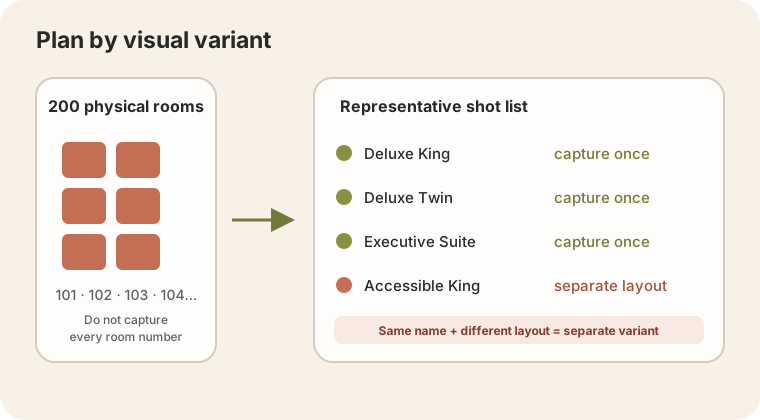
Create the shot list before walking the property:
Resort A

Deluxe King
  [ ] Main room
  [ ] Bathroom
  [ ] Balcony, if applicable

Deluxe Twin
  [ ] Main room
  [ ] Bathroom

Executive Suite
  [ ] Living area
  [ ] Bedroom
  [ ] Bathroom
  [ ] Balcony

Accessible King
  [ ] Main room
  [ ] Accessible bathroom
Capture a representative physical room for each variant. If rooms sold under the same marketing name have materially different layouts, accessible configurations, renovations, balcony geometry, attached spaces, or furniture arrangements that would make one view misleading, create separate variants.
Capture room types once — when they really are the same
If 200 rooms resolve to eight visually distinct variants, the operator may need roughly eight representative ArchWalk Experiences rather than 200. Each Experience can contain several Panoramas:
Experience: Deluxe King
  Panorama: Bedroom · Entry
  Panorama: Bathroom
  Panorama: Balcony
The partner can later associate every matching physical room record with the same published Experience and Viewer. The partner owns the physical-room-to-variant mapping. ArchWalk owns the Experience, Panoramas, directed navigation links, publication, and Viewer.
If you have a floor plan, you can optionally position captured Panoramas on it after upload.
Do not reuse a representative capture when a difference would mislead a guest. Server-to-server inventory mapping is documented in the Partner plugin integration section of the Partner Guide. This capture guide does not add hotel inventory fields or automatic mapping to ArchWalk.
Choose useful camera positions
A dedicated 360 camera on a stable tripod or monopod is the recommended professional workflow. Insta360 and Ricoh THETA are examples; no vendor is required. A compatible spherical-capture phone app can be a lower-cost fallback. An ordinary horizontal iPhone or Android Panorama sweep is not a full spherical 360 image.
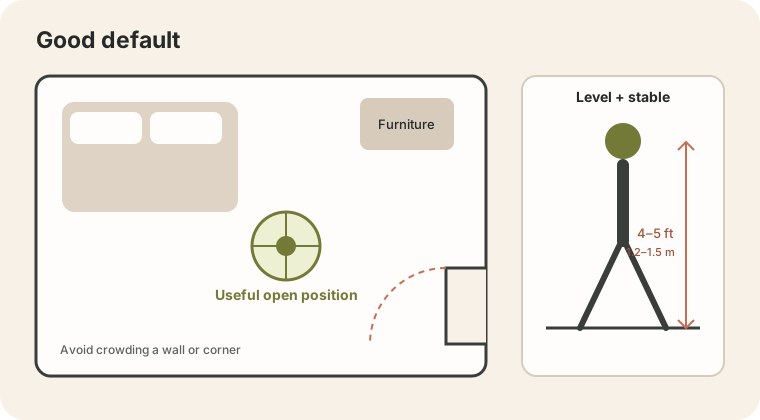
Use these defaults:
- Place the camera roughly in the center or another open position that explains circulation and important features.
- Avoid hugging a wall or corner unless the room geometry requires it.
- Set the camera approximately at chest height, 4–5 ft (about 1.2–1.5 m). Exact centimeters are unnecessary.
- Keep the tripod stable and the camera level and vertical.
- Clean both lenses.
- When the camera has a known stitch seam, avoid placing a critical object directly on it where practical.
- Check mirrors, windows, shower glass, televisions, and glossy surfaces for reflections.
Capture each room
Prepare the room
- Clean and stage the space without turning the shoot into an interior-design project.
- Remove documents, guest details, and other private material.
- Use consistent lighting and curtain or blind positions across the variant set.
- Open interior doors that should explain a connected space.
- Stop fans, televisions, and other moving objects where practical.
- Decide the capture positions before pressing the shutter.
Balance bright windows and darker interiors
Hotel rooms often combine bright windows with a darker interior. If the camera supports still-photo HDR, it can preserve more detail in both areas. Keep the room still while the camera records its exposures, preview the result, and avoid settings that create movement or ghosting.
Get out of the shot
A 360 camera sees essentially every direction. It can also see the operator in a mirror even when the operator is outside the direct line of sight.
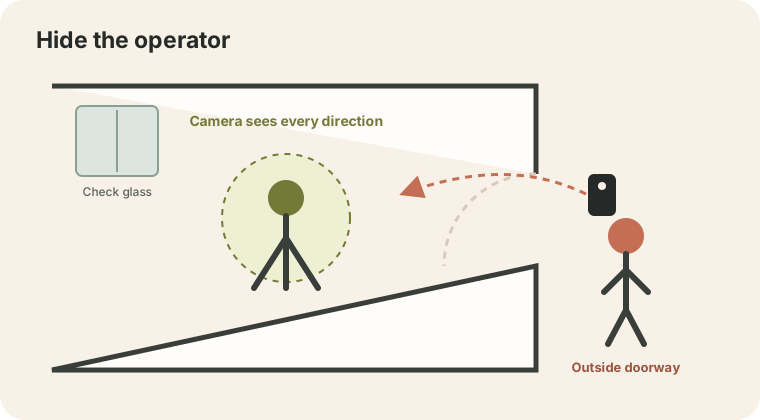
- Set a remote trigger or timer.
- Step outside the doorway or behind a wall.
- Keep other people out of the room.
- Preview the complete result and inspect mirrors and glass.
Some cameras reduce the tripod or monopod in their stitched image, but do not assume every support will disappear. Check the finished sphere.
Know when one view is enough
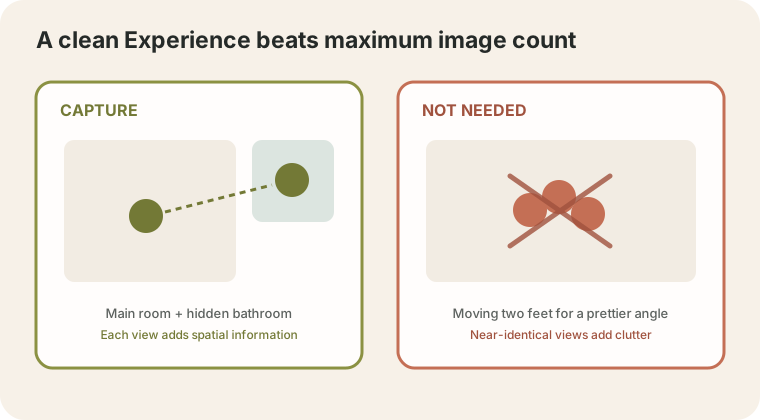
One room is not automatically one photo, and more photos are not automatically better.
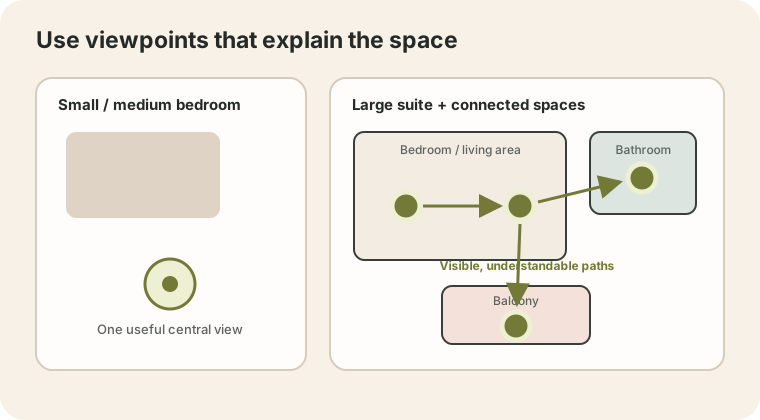
Take another Panorama when:
- a doorway leads to an important bathroom, balcony, alcove, or connected space that the current view cannot explain;
- a large or open suite benefits from a second or third position;
- a new position materially improves the viewer's understanding of the layout.
Do not add a Panorama merely for another attractive angle when the existing view already represents the space honestly.
Think in a simple sequence:
Main room → visible doorway → bathroom
Main room → balcony
Living area → bedroom
Where practical, adjacent positions should be visually understandable from each other. This makes it easier for the author to place AW360 navigation points later. ArchWalk does not infer or create those links automatically.
Typical guidance, not platform limits:
- A small or medium main room often needs one useful viewpoint.
- A hidden or separate bathroom usually needs its own viewpoint.
- An important balcony may need its own viewpoint.
- A large/open suite may need two or three viewpoints when each adds real spatial information.
Export and review
ArchWalk Viewer is designed for full spherical/equirectangular imagery, typically exported as a 2:1 image. For this field workflow, use a high-quality JPG unless your delivery process has a documented reason to use another supported format.
- Preserve the highest practical original export quality.
- Avoid repeated recompression through messaging or website downloads.
- Use consistent, human-readable file names.
- Treat the file name as an operator aid, not an API identity.
Example names:
resortA_deluxe-king_main.jpg
resortA_deluxe-king_bathroom.jpg
resortA_deluxe-king_balcony.jpg
resortA_executive-suite_living.jpg
Before leaving the property, open every file and repeat the Check before moving on list at the top of this guide.
Can existing property assets be used?
Ask for original files before relying on compressed website copies. Review the source before promising a result.
| Existing asset | Recommendation | What to check |
|---|---|---|
| True full 360/equirectangular image | Use directly after QA | Full spherical coverage, practical quality, readable detail, and expected aspect. |
| Overlapping source photos from one fixed viewpoint | Good candidate | Sufficient overlap and a fixed camera position. Camera movement creates parallax and stitching problems. |
| Photographer's panorama source set or bracketed originals | Good candidate | Request originals; inspect overlap, exposure sets, and viewpoint consistency. |
| Partial phone panorama or sweep | Needs source review | A normal horizontal sweep is not automatically a full sphere and may require recapture. |
| 360 video or spherical footage | Needs source review | Confirm spherical export, still-frame quality, motion, and resolution before promising use. |
| Ordinary disconnected marketing photos | Re-capture recommended | Unseen walls, floor, ceiling, and geometry were never photographed; stitching cannot truthfully recover them. |
| Ordinary photos from different camera positions | Separate reconstruction workflow | With enough overlap they may support photogrammetry or 3D reconstruction, which is outside the current ArchWalk capture pipeline. |
| Original 3D/CAD/render scene | Good candidate | Render genuine spherical/equirectangular viewpoints from the source scene. |
| Flat rendered marketing images only | Re-capture or request source scene | Flat renders have the same missing-view problem as ordinary photos. |
| AI or generative outpainting | Do not use as truthful capture by default | It may invent walls, doors, furniture, or geometry. ArchWalk does not provide automatic photo-to-360 reconstruction here. |
References and further reading
These sources explain general capture practice and source-image limitations. Product-specific behavior in ArchWalk's current contract remains authoritative.
- Zillow: Create tours with a 360-degree camera — preparation, chest-height support, leaving the camera view, and multiple positions in large rooms.
- Zillow 3D Home FAQ — room preparation, line of sight, reflections, and capture review.
- Insta360: Virtual tour tutorial and 360 photography guidance — dedicated-camera workflow and general spherical photography.
- Insta360: HDR Photo / Active HDR — manufacturer guidance for HDR-capable equipment.
- PTGui viewpoint correction and PTGui FAQ — why viewpoint movement and parallax matter when stitching source photos.
- Booking.com: Managing room types — an example of partner-owned room-type inventory concepts; ArchWalk does not import that domain model.